Memory Tiering in VCF: Doubling Memory with DRAM and NVMe
My latest X thread covered Memory Tiering in VMware Cloud Foundation (VCF). A thread doesn't leave much room, so here is the longer version: what the feature is, how it works, what the published performance testing shows, where it fits (and where it doesn't), and how to get started.
What Memory Tiering is
Memory is often the biggest component of a server's hardware cost. Production environments also tend not to over-commit memory, because ballooning, compression, and swapping can cause unpredictable performance. So admins provision the full amount each VM asks for, and expensive DRAM sits underused.
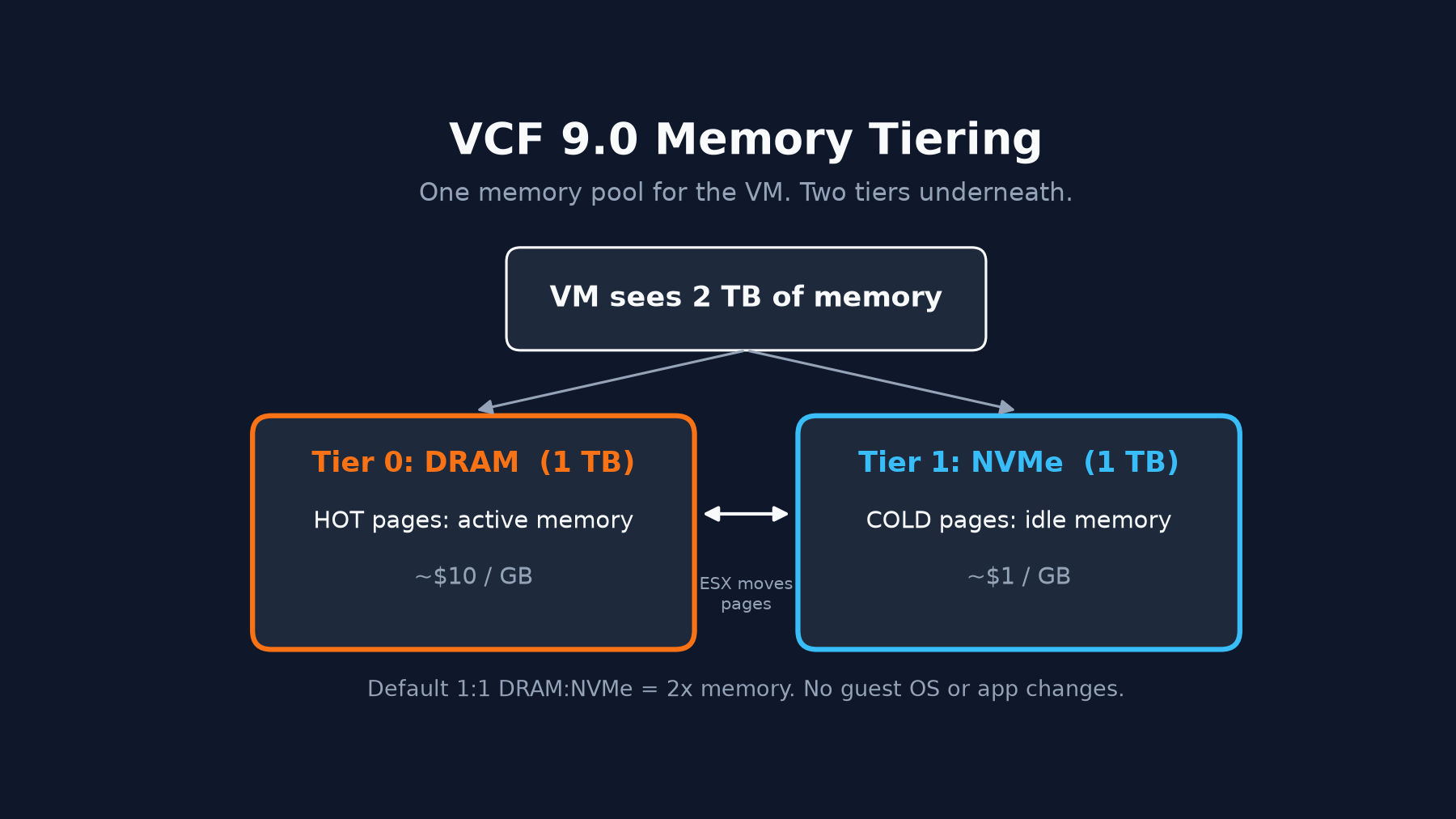
Memory Tiering, introduced in VCF 9.0, takes a different approach. It lets an ESX host use a locally installed NVMe device as a second tier of memory alongside DRAM:
- Tier 0 is DRAM, the fast tier.
- Tier 1 is NVMe, the slower and cheaper tier.
The VM sees one contiguous, larger memory space. It doesn't know or care which tier a given page lives on, and there are no guest OS or application changes required.
How it works
Under the hood, ESX watches VM memory activity and classifies pages as "hot" (actively used) or "cold" (inactive). It works to keep hot pages in DRAM and moves cold pages out to NVMe. If a cold page becomes active again, it's fetched back from the NVMe tier. Memory pages from NVMe are only used for VM memory allocations.
A few details worth knowing:
- The default ratio is 1:1 DRAM:NVMe. With 1 TB of DRAM you get an additional 1 TB backed by NVMe, for about 2 TB of memory available to VMs (minus some overhead).
- The ratio is adjustable. The host advanced setting
Mem.TierNvmePctsets the NVMe tier size as a percentage of DRAM. For example, 25 gives you a 4:1 DRAM:NVMe ratio. The documentation recommends keeping Tier 0 greater than or equal to Tier 1 (a value of 100 or lower) for the best and most consistent performance. - It's off by default. You activate it at the cluster or host level, and you can opt individual VMs out.
- Encryption is optional. Pages on the NVMe tier are not encrypted by default. More on that under Security considerations below.
What the performance testing showed
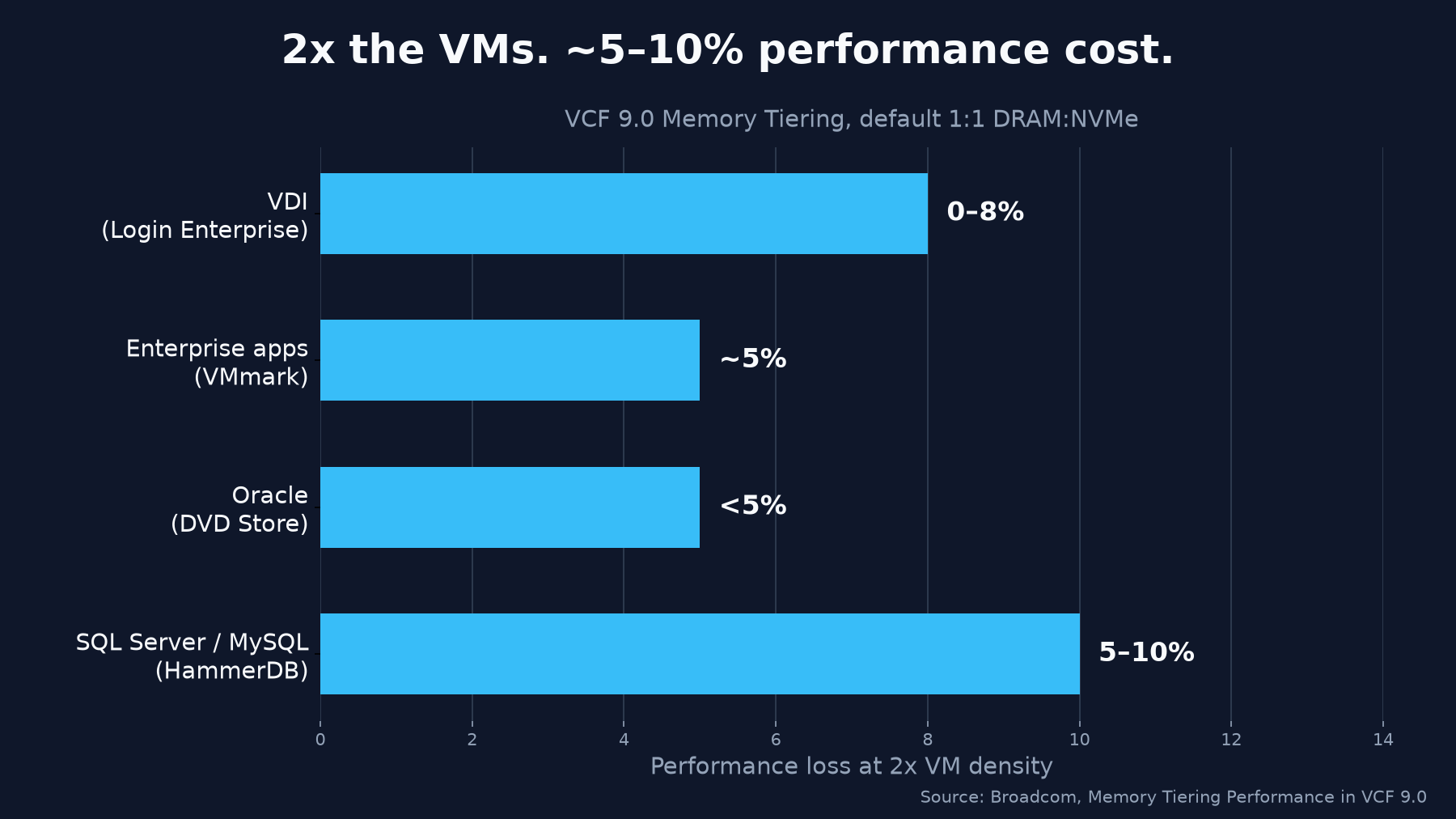
Broadcom's performance team published a study (Todd Muirhead and Qasim Ali, July 2025) testing Memory Tiering on both Intel and AMD servers with the default 1:1 ratio. The headline: double the VM density for a single-digit to low-double-digit performance cost.
| Benchmark | Workload | Result |
|---|---|---|
| Login Enterprise | VDI | 2x VM density, 0-8% performance loss |
| VMmark | Enterprise apps | 2x VM density, 5% performance loss |
| DVD Store | Oracle Database | 2x VM density, less than 5% performance loss |
| HammerDB | SQL Server, MySQL | 2x VM density, 5-10% performance loss |
Some specifics from the results:
- VDI: On a 3-host vSAN cluster, VDI sessions doubled from 300 (DRAM only) to 600 (Memory Tiering), with no performance loss compared to an equivalent all-DRAM configuration.
- VMmark 3.1: The Memory Tiering configuration ran 6 tiles versus 3 tiles for DRAM only (114 VMs versus 57). Comparing 1 TB DRAM only with 1 TB Memory Tiering, the loss was 5%.
- Oracle with DVD Store: 8 VMs per host with Memory Tiering versus 4 VMs with DRAM only, with less than 5% loss.
The study sums it up as less than 10% performance loss across these workloads, doubled VM density, and up to a 40% TCO saving. One important caveat: all of those numbers are at 2x VM density. The paper notes that at lower density the impact will be lower or negligible.
When to use it
Memory Tiering is a good fit when your hosts are memory-bound but not CPU-bound, and much of the allocated memory is idle. The documentation describes the sweet spot as environments where memory consumption is high (more than 50% allocated across all VMs) but active memory stays low (less than 50% of total DRAM). VCF Operations highlights clusters with active memory below 50% and free CPU capacity above 50% as strong candidates.
Two numbers to watch once it's running:
- Active memory: keep it at or below 50% of DRAM.
- NVMe read latency: best performance is below 200 microseconds. If NVMe read bandwidth goes above 200 MB/s, start watching device latency closely, because it has a direct impact on workload performance.
When not to use it
Memory Tiering isn't for everything. The VCF Operations documentation says not to enable it on clusters running latency-sensitive workloads or workloads with large active memory, such as telco workloads, in-memory Java applications, or high-frequency trading.
Some VM types can't be powered on at all on a host with Memory Tiering active:
- Low-latency VMs (
sched.cpu.latencySensitivity = "high") - Security VMs using SEV, SGX, or TDX
- Fault Tolerant VMs
- Large VMs with more than 1 TB of memory and 128 vCPUs
- Nested virtualization VMs
Others can run on a tiered host but are automatically kept entirely in DRAM: VMs using 1 GB pages, VMs with preallocated memory, PCI passthrough VMs (including VMXNET3 with UPT), and vQAT VMs. Plan enough DRAM-only capacity for those.
There are also some host-level limits: suspend-to-memory isn't supported (suspend-to-disk and snapshots are), the NVMe device can't be hot-plugged or removed while in use, and the host can't have Intel Optane Persistent Memory or NVDIMM-N installed.
Security considerations
DRAM loses its contents when the power goes off. NVMe doesn't. With Memory Tiering, cold VM memory pages are written to a non-volatile device. In a security-conscious or regulated environment, I'd treat the tier like any other data at rest.
- Encryption is off by default. You can turn it on for every VM on a host (
Mem.EncryptTierNVMein 9.0, oresxcli memtier config set --encryption truein 9.1 with the host in maintenance mode) or for individual VMs (sched.mem.EncryptTierNVMe). The documentation describes host-level encryption as protection against device theft or unauthorized hardware access, and VM-level encryption as finer-grained defense in depth. - No key server needed. According to VMware's design blog, each host generates a random 256-bit AES-XTS key at the kernel level when a VM powers on. Pages are encrypted as they move to NVMe and decrypted when they come back to DRAM. During vMotion, pages are decrypted, sent over the encrypted vMotion channel, and the destination host generates a new key.
- It's separate from VM Encryption. The docs state that NVMe tier encryption is different from virtual machine encryption, so I wouldn't assume an encrypted VM's tiered pages are covered. Turn tier encryption on explicitly.
- Confidential computing VMs stay off tiered hosts. SEV, SGX, and TDX VMs can't power on there.
- FIPS. ESX's VMkernel Cryptographic Module 2.0, which includes AES-XTS, holds an active FIPS 140-3 certificate (#4815, tested on ESXi 8.0). I haven't found a source that says Memory Tiering encryption uses that module, so confirm it before you rely on it for compliance.
New in vCenter 9.1.1: DRS and HA support
The vCenter 9.1.1.0 release notes (GA September 3, 2026) list DRS and HA support for Memory Tiering as new. In the release notes' words: "With VCF 9.1.1, Memory Tiering supports DRS and HA. In clusters with Memory Tiering activated, vSphere HA admission control tracks DRAM as an independent resource alongside total memory to make sure that the cluster retains sufficient DRAM capacity for virtual machines restart after a host failure."
How to get started
1. Simulate first. In VCF Operations, the Resource Efficiency tab (under Capacity > Optimize) shows which clusters are good candidates, how many more VMs you could run, and estimated savings. The estimate uses assumed pricing of $10 per GB for DRAM and about $1 per GB for NVMe, so treat it as a starting point, not a quote.
2. Check requirements. You need vCenter 9.0 and ESX 9.0 or later, plus a locally installed NVMe device (not over fabric or Ethernet). It must be in a similar class to a vSAN cache device: check the Broadcom Compatibility Guide's vSAN SSD list for Endurance Class D (7300 TBW or more) and Performance Class F or G. The device can't already be part of a datastore such as vSAN, and the tier partition can't be larger than 4 TB. If you want resiliency against a single device failure, NVMe behind a supported RAID controller is supported.
3. Create the tier partition. With the host in maintenance mode and all existing partitions removed from the NVMe device:
esxcli system maintenanceMode set --enable true
esxcli storage core adapter device list
esxcli system tierdevice create -d /vmfs/devices/disks/<device>
esxcli system tierdevice list
4. Turn it on and reboot. At the host level, set the advanced setting VMkernel.Boot.memoryTiering to true. At the cluster level, use vSphere Configuration Profiles and enable the memory_tiering boot option. Then reboot. To exclude a specific VM, power it off and set sched.mem.enableTiering to false.
5. Monitor. Watch active memory versus DRAM and NVMe read bandwidth and latency in vCenter's Advanced Memory Performance charts, and use the Memory Tiering dashboard in VCF Operations to track Tier 0 and Tier 1 usage.
If your hosts run out of memory long before CPU, this is worth a look.
Sources
- Memory Tiering Performance in VMware Cloud Foundation 9.0 (VCF blog, July 17, 2025)
- Memory Tiering Performance: VMware Cloud Foundation 9.0 (full performance study, PDF)
- Using Memory Tiering for Resource Efficiency (VCF Operations documentation)
- vCenter 9.1.1.0 Release Notes
- Memory Tiering over NVMe (vSphere 9.0 requirements)
- Memory Tiering Configuration
- Virtual Machine Profiles and Performance with Memory Tiering
- Assessing Customer Workloads for Memory Tiering
- NVMe Memory Tiering Design and Sizing on VCF 9, Part 2: Design for Security, Redundancy, and Scalability (VCF blog, November 18, 2025)
- NVMe Memory Tiering Design and Sizing on VCF 9, Part 7: Advanced Configuration (VCF blog, January 27, 2026)
- Memory Tiering Configuration, vSphere 9.1
- FIPS Modules Used in ESX (vSphere 9.0 security documentation)
- NIST CMVP Certificate #4815: VMware VMkernel Cryptographic Module 2.0